
NOTE: This is an older way for Polycom VVX 30x/40x/50x/60x phones to mimic a close to one-touch call park functionality.
👉 If you are using a Poly VVX x50, HP-Poly Edge E or Yealink desk phone, do not use this method. Use the One-Touch method outlined in this article.
Older method for simulating a close to one-touch park/retrieve feature
Setting Up One-Touch Park
- You will need additional seats to set up as Park locations.
- Create an order with 2 Premium seats (with no device) called Park 1 and Park 2.
- You can create more than two park locations if you want, but bear in mind there is a monthly recurring charge associated with each one.
- Turn on Automatic Hold/Retrieve in the portal for each park location (Park 1 and Park 2):

- Add Busy Lamp Fields on every seat upon which you would like access to one-touch park for each park location:
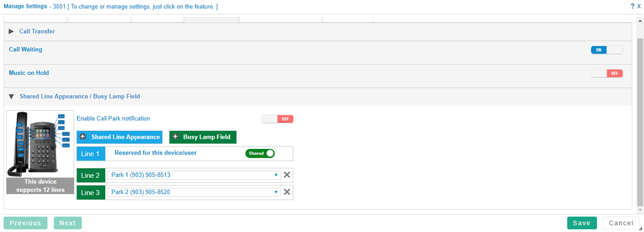
- Repeat this process for every extension that will use the park locations.
Using One-Touch Park
- With an active call, transfer it to one of the park locations
- You must use the LINES softkey to perform this transfer
- Then, retrieve the parked call from any other phone with the park locations enabled.