
When launching officeXtend, you'll be asked to enter your username and password. This applies to all versions including Android, iOS, Windows and macOS
You will need to enter this information each time you log into the applications, but Android and iOS both provide methods to securely save usernames and passwords and associate those with an application, making logging in much easer. Below are two sections - one on how to use the Google Password Manager on Android and the next on how to use Passwords on iOS.
Saving your login information on officeXtend for Android
Note: Saving your username and password maybe different depending on your phone manufacturer. This article uses Google Password Manager. Other password managers should be similar such as on Samsung devices.
When you launch officeXtend and touch the Username field, Android will bring up the keyboard. In most instances, you'll also see a Passwords button.
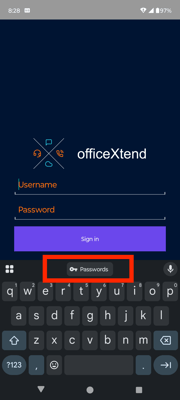
Touch the Passwords button. If you don't have anything save for officeXtend, you'll see No saved passwords for officeXtend. Touch Manage Passwords to create a new entry in the password manager.
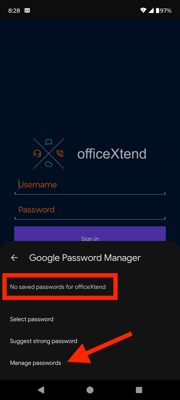
This will bring up the list of all your currently saved entries. Touch Add password to create a new entry.
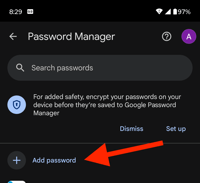
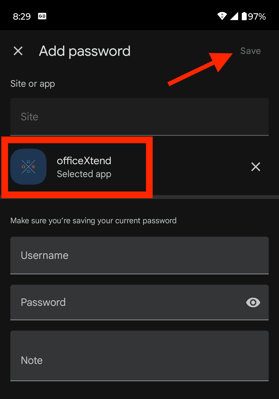
Next, touch Select App. This will bring up a scrollable list of all your apps. Locate officeXtend and choose it.
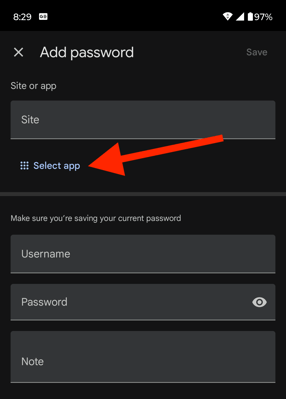
You should see officeXtend as your selected app. Fill in the username and password you use to login to officeXtend with. You can also add a note that stays within the password manager. Once you entered your information, touch Save in the upper right corner to save this to the Google Password Manager.
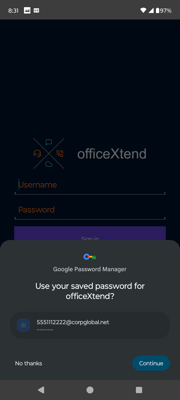
Now, anytime you logout of officeXtend and then launch officeXtend later, touch the Username field and Google Password Manager will offer to fill in the fields for you. Touch Continue to automatically fill in the fields and then just touch Sign in to login.
Saving your login information on officeXtend for iOS
iOS has a built-in Passwords application. This application can be used to save username/passwords for various sites or applications you use on iOS. To create an entry for an application, it's easier to just start from the application itself.
When you launch officeXtend and touch the Username field, iOS will bring up the keyboard. In most instances, you'll also see a Passwords button.
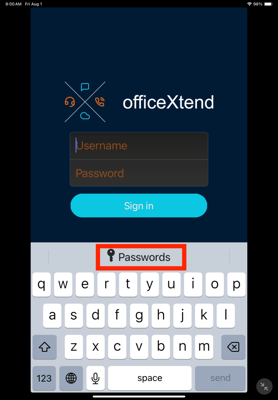
Touch the Passwords button and this will bring up a list of your currently saved entries. Touch the + (plus) button in the upper right corner to create a new entry.
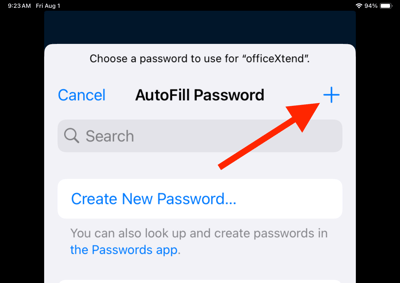
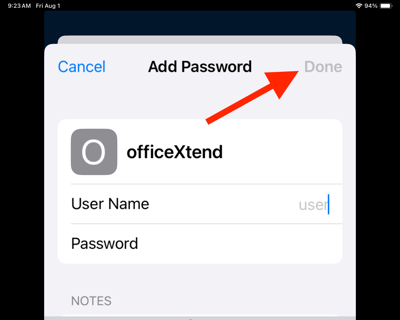
Since you launched this from the officeXtend app, the app name is already filled in for you. Enter your username, erase the auto-generated password and enter the password you use to login to officeXtend. You can enter some notes for use within the Passwords app. When you have finished, touch Done in the upper right corner to save this entry.
Next time when you launch officeXtend, touch the Username field to bring up the keyboard. Then touch Passwords. This will bring up the list of stored passwords. Choose your officeXtend entry from the list and this will auto fill you username/password. Then touch Sign in to login to officeXtend.