
The Atlas portal now supports adding 2FA (two-factor authentication) as an extra layer of security for your login. 2FA is supported through the use of mobile authenticator apps like Google Authenticator, Cisco Duo and Microsoft Authenticator. These can be downloaded from the app stores.
This document will provide instructions on the key steps to successfully enabling 2FA for your Atlas portal account.
Atlas 2FA Setup
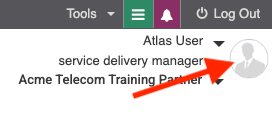
To enable this feature, login to your Atlas portal. In the upper right corner is a person icon where your Profile settings are contained. Click the icon.
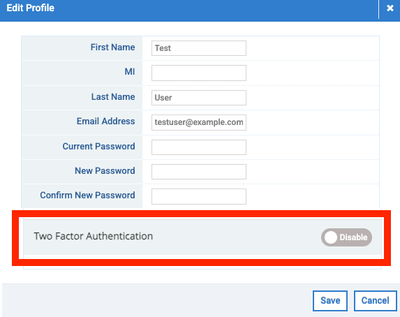
Next, in the new Two Factor Authentication section, move the slider from Disable to Enable.
Once enabled, a QR code will be displayed.
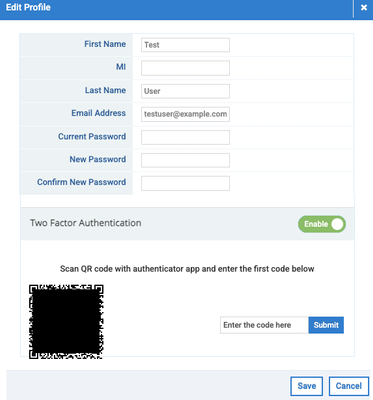
Use a mobile authentication application like Google Authenticator, Cisco Duo or Microsoft Authenticator to scan the QR code. When you open the app on your mobile phone, the apps typically have a + or +Add option to add a new service. Touch that option, then choose to scan the QR code. The app will then enable your phone’s camera. Aim the camera at the QR code on the screen until the app picks up the QR code. Using a QR code is a quick and easy way to add this to your authenticator app.
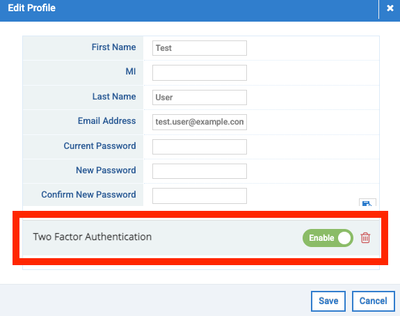
The app will add this login to your list and generate a 6-digit code. Enter the code from the app and click Submit in the Enter the code here box. The account will now show Enabled.
The next time you log into Atlas, enter your username and password as normal. Then you will be requested to enter a 6-digit code shown in your authenticator app. Find the code next to the Atlas entry in your list. The codes have a short time-out, so you may need to wait for the next code to be generated before entering and completing your login.
Additionally, 2FA can be disabled and preserve your 2FA settings so it can be re-enabled later. The 2FA settings can also be deleted by clicking the trash can icon so you can start the process over if you decide to change your mobile authentication app.